
An EU9 app download does not happen in Google Play or the App Store, so both installs start on the operator’s own download page rather than in a store search. Android users get an APK file and one browser permission prompt. iPhone users get an enterprise app, which arrives with a configuration profile that has to be trusted in Settings before the icon will open. Neither route is complicated once you know which screen is coming next, and this page walks through both in order, plus how to take the app off again.
EU9 download: how the app reaches your phone
Open Download in the top menu of the lobby and you land on the EU9 download page, which serves both platforms. It shows a QR code for scanning from a second device, an Android APK download, and the iPhone instructions. On a desktop, scan the code with the phone camera. On the phone itself, go straight to the download for your platform.
Because distribution sits outside the stores, your phone does the gatekeeping instead of Google or Apple. That is the whole reason for the extra prompts described below, and it is also why you should only ever install from the download page in the operator’s own lobby.
| Detail | EU9 |
|---|---|
| Android | APK file from the download page |
| iPhone | Enterprise app installed with a configuration profile |
| App stores | Not listed on Google Play or the App Store |
| Account | The same login as the website |
| Updates | Taken from the download page |
Installing the APK on Android
EU9 app download: the APK
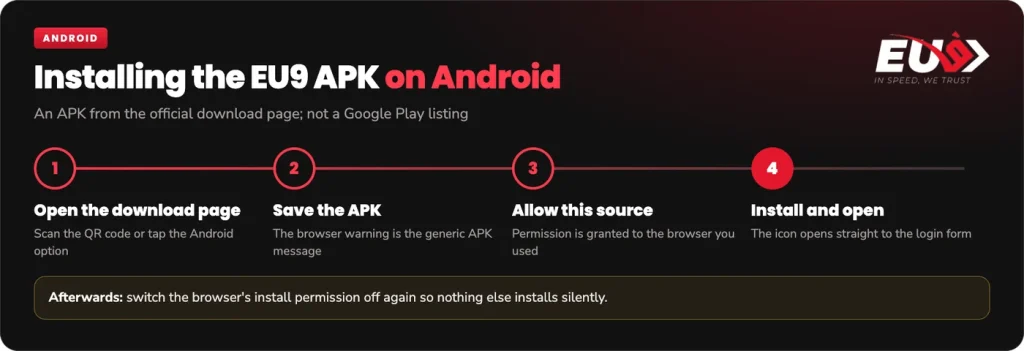
Tap the Android option on the download page and let the file save. Your browser may warn you that this type of file can harm your device, which is the generic message Android shows for every APK and not a judgement on this one. Open the file from the download notification or from your Downloads folder when it finishes, then confirm the install.
Allow the install
The first time you do this, Android will stop and ask whether apps from that source may be installed. On current versions of Android the permission is granted per app, so it is the browser you downloaded with that receives it, not the system as a whole. Grant it, return to the file, and the install continues.
Good to know
If Android blocks the APK, the setting lives with the browser that downloaded it. Allow it once, finish the install, then switch the permission off again so nothing else can install silently later.
Once installed, the app sits on the home screen like any other icon and opens straight to the login form.
Installing on iPhone
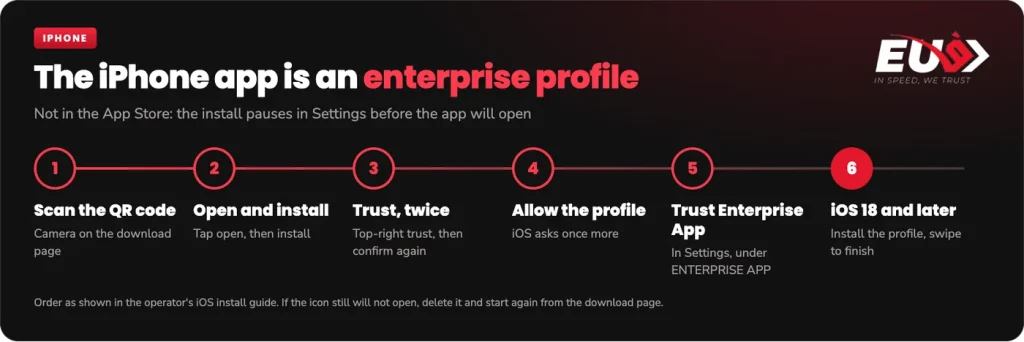
iOS has no equivalent of the APK. Instead the operator distributes an enterprise app, which means the install happens in two halves: the app arrives, and then a profile has to be trusted before iOS will let it launch. Expect to visit Settings in the middle of the process; the steps run in this order.
- Scan the QR code. Use the phone camera on the download page, or open the iPhone link from the page itself.
- Open and install. A prompt appears; tap open, then tap install.
- Trust the app. Tap trust in the top right corner, then confirm trust a second time when iOS asks again.
- Allow the configuration profile. iOS asks to allow the profile once more; allow it.
- Trust the Enterprise App. In Settings, open the entry under ENTERPRISE APP and tap trust, then confirm one more time.
- On iOS 18 and later, install the profile. A further prompt asks you to install the profile; install it and swipe to finish.
If the icon still refuses to open after all that, delete it and run the sequence again from the download page rather than hunting for another source.
EU9 runs a collaboration with a partner casino, and the button below opens it rather than the EU9 lobby.
What the trust step means
An enterprise profile is Apple’s mechanism for distributing software outside the App Store, built for companies deploying internal apps to staff devices. Trusting the profile tells iOS that you accept software signed by that certificate, which is why the warning appears before you act and not after. It is a permission, not a fault, and the same screen is where you later withdraw it.
Two sensible habits follow from that. Install only from the download page inside the operator’s own lobby, since a profile reached from somewhere else is signed by somebody else entirely. And remember that the permission is reversible in Settings whenever you want it gone.
One practical limit sits here: the iPhone app will not launch until the profile is trusted, and no store listing exists to install from instead. If you would rather not manage a profile at all, the mobile browser remains an option.
One account for the app and the site
There is no separate app registration. You sign in with your mobile number or username, using either the PIN or the password mode, exactly as on the website, and the same balance and promotion choices apply as they do in the full lobby.
EU9’s terms allow one active account per person, so opening a second account on the app is not a workaround if you cannot get in. Fix the sign-in instead.
Updating and removing the app
Because the app sits outside the stores, updates are not pushed automatically. The download page prompts you to move to a newer version when one is available, which means returning to that page and repeating the install for your platform rather than waiting for a store badge.
Removal is straightforward on both platforms. On Android, uninstall the app as normal, then switch off the browser permission you granted earlier if you have not already. On iPhone, deleting the icon is only half the job: in general, the signing profile stays on the device until you remove it in Settings under General, then VPN & Device Management. Delete the profile there and the certificate goes with it.
If the reason you are removing the app is that you cannot sign in, the fix is an OTP reset rather than a reinstall, and resetting your PIN works the same way in the app as it does in a browser.
FAQ
Is the EU9 app on the App Store or Google Play?
No. It is not listed in either store. Android devices install an APK file taken from the operator’s download page, and iPhones install an enterprise app through a configuration profile from the same page. If you find a listing in a store that claims to be this app, treat it as unrelated.
Why does my iPhone say the developer is not trusted?
That message is standard iOS behaviour for any app installed outside the App Store. Open Settings, go to General, then VPN & Device Management, select the enterprise profile and trust it, then confirm when asked a second time. On iOS 18 and later you also install the profile itself and swipe to finish.
Does the APK use the same account as the website?
Yes. You sign in with the same mobile number or username and the same PIN or password, so there is no second registration. EU9’s terms allow one active account per person, so creating a separate account for the app is not an option.
How do I remove the app from my phone?
On Android, uninstall it the way you would any app, then switch the browser’s permission to install unknown apps back off. On iPhone, delete the app and then remove its profile in Settings under General, VPN & Device Management, which is what stops the enterprise certificate from staying on the device.